Garmin Personal API key: where to find it and what it can do
A Personal API key is a long password that lets an app read your own Garmin data. You create it in Garmin Connect and choose how long it lives. Garmy needs one. This page says where to find it, what Garmy reads with it and what Garmin does not give out.
1Open the Personal API Key page
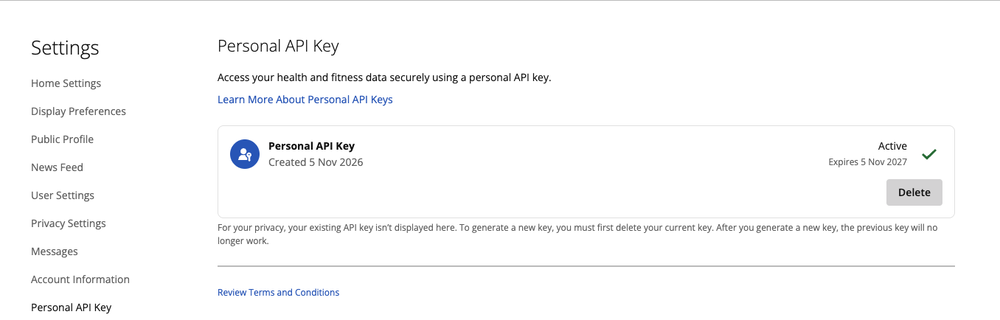
Open Garmin Connect in your browser, then Settings›Personal API Key. The page is Garmin's, so Garmin can move it. If you cannot find it, search the Garmin Connect settings for the words "Personal API Key".
You need a Garmin Connect account. The same account your watch syncs to.
2Create the key
- Accept the terms.
- Create a key and pick its lifetime.
- Copy it. Garmin shows the key only once.
The page in the picture above tells you why: for your privacy an existing key is not displayed. To generate a new key you must first delete the current one, and after you generate a new key the previous key no longer works. So paste the key into Garmy right away.
3Paste it into Garmy
Install Garmy, run Garmy: Build a Garmin dashboard and paste the key into the first step. Check and continue asks Garmin whether the key works before the wizard moves on.
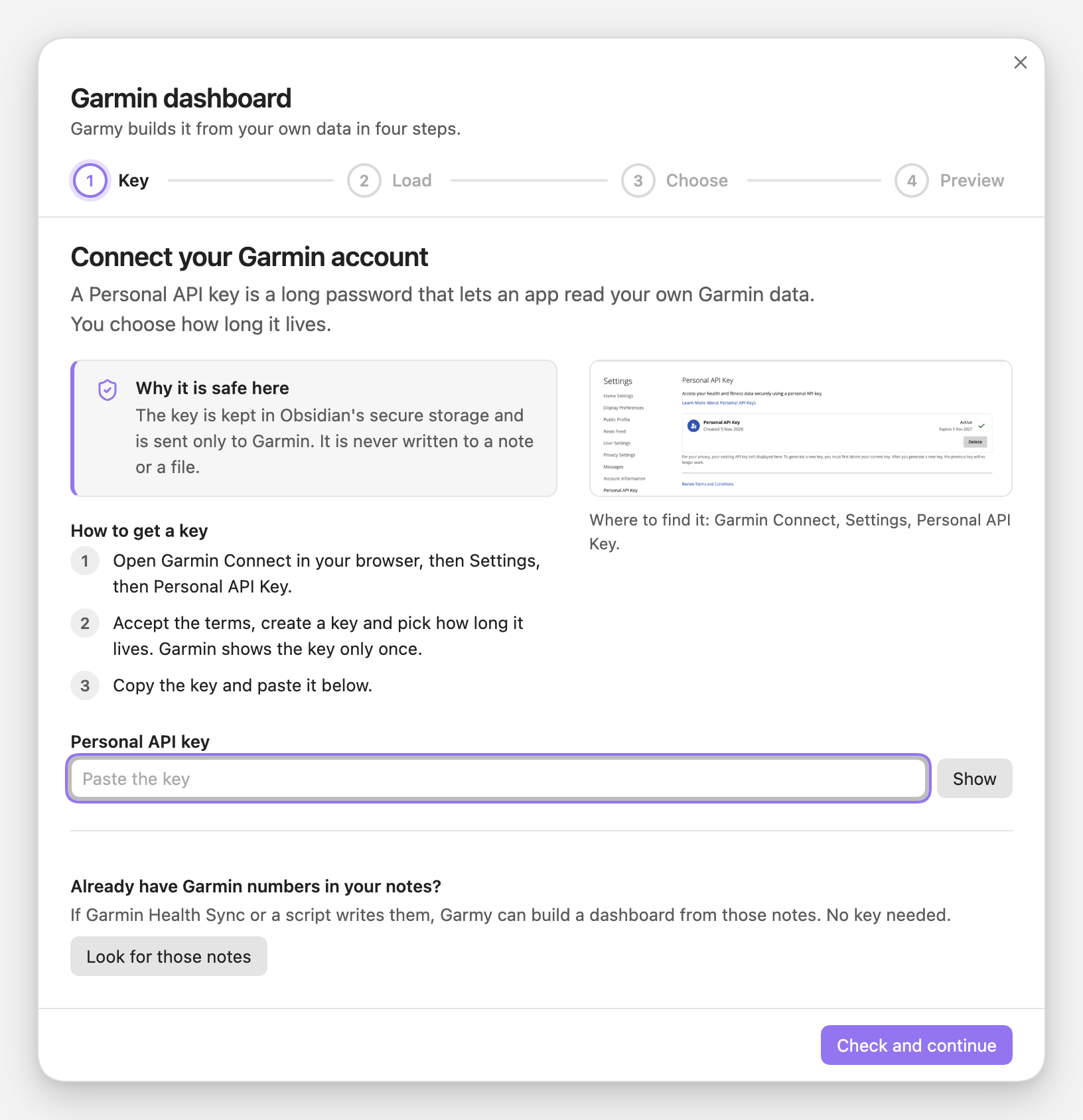
If something goes wrong, the wizard says one of three things:
Not acceptedGarmin did not accept the key. Check that it was copied whole and has not expired. The fix is to paste another key.No connectionCannot reach Garmin. Check your connection and try again.WaitGarmin asks to wait. Try again in a minute.
What Garmy reads with it
Garmy exchanges the key for a token that is valid for 24 hours, then calls four Garmin services. A year of history takes about 17 requests.
| Service | What Garmy takes | Written as |
|---|---|---|
dailysummaries | Steps, resting heart rate, average stress, the day's highest Body Battery | steps resting_hr stress body_battery |
dailySleepSummariesByDate | Overall sleep score, time asleep | sleep_score sleep_duration |
hrv/daily | Last night's average HRV | hrv |
activities/search | Runs, rides, swims and strength sessions: distance and duration, summed per day | run_km run_min bike_km bike_min swim_km swim_min strength_min |
All requests go to personal.connectapi.garmin.com, and nowhere else.
What it cannot do
- Training Readiness. The Personal API does not provide it.
- A VO2 max number. Same reason.
- A full daily distance. The range endpoints report walking distance only, so Garmy does not write
distance_kmrather than show a wrong number. - Splitting a multi-sport activity into its sports.
How long it lasts
You choose the lifetime when you create the key. When Garmin rejects the key, Garmy says so once and settings show Replace key. Create a new key in Garmin Connect and paste it in the wizard. The 24 hour token cannot be refreshed, so Garmy asks for a new one after 23 hours.
Where the key is kept
It is kept in Obsidian's secure storage. It is never written to a note, to data.json or to a log, and error messages never contain it. Forget key in Garmy's settings removes it. The details are in SECURITY.md.
Read the terms
Garmin describes the Personal API as meant for individuals who want programmatic access to their own data, not for commercial applications serving multiple end users. Garmy has no server and no accounts: it runs on your computer with your own key. Read what you accept when you create a key.
Related guides
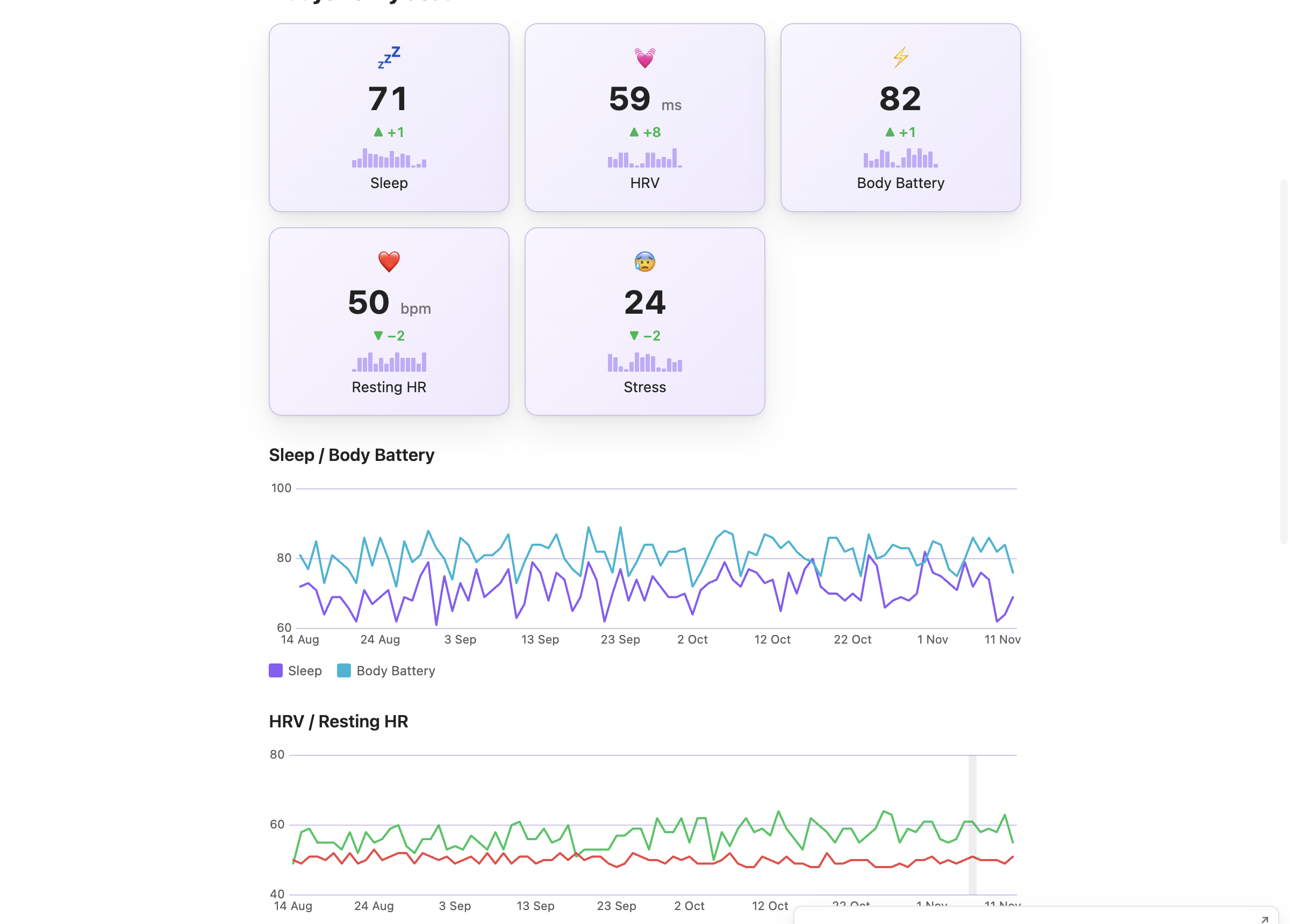
Sleep score, sleep duration, HRV, resting heart rate and Body Battery as cards and charts in one note, from your own Garmin data.
Two ways to get Garmin numbers into Obsidian notes. What Garmy does, what it leaves out, and how it works with notes Health Sync already wrote.

Run, bike, swim and strength per week, a month calendar, a year map by sport and monthly goals, built from your Garmin activities.
Got the key? Install Garmy from Community plugins and paste it into the wizard.