Build an Obsidian dashboard with an AI agent
Claude CodeCodexCursorYou say what you want to see: books this year against a goal, a habit calendar, a home page. The agent looks at your vault, the property names, the daily notes folder and how the notes are named, and writes Dashy blocks into the note. You open the note and check. The blocks stay plain YAML, so you can read them and change them by hand later.

1Install Dashy and its skill
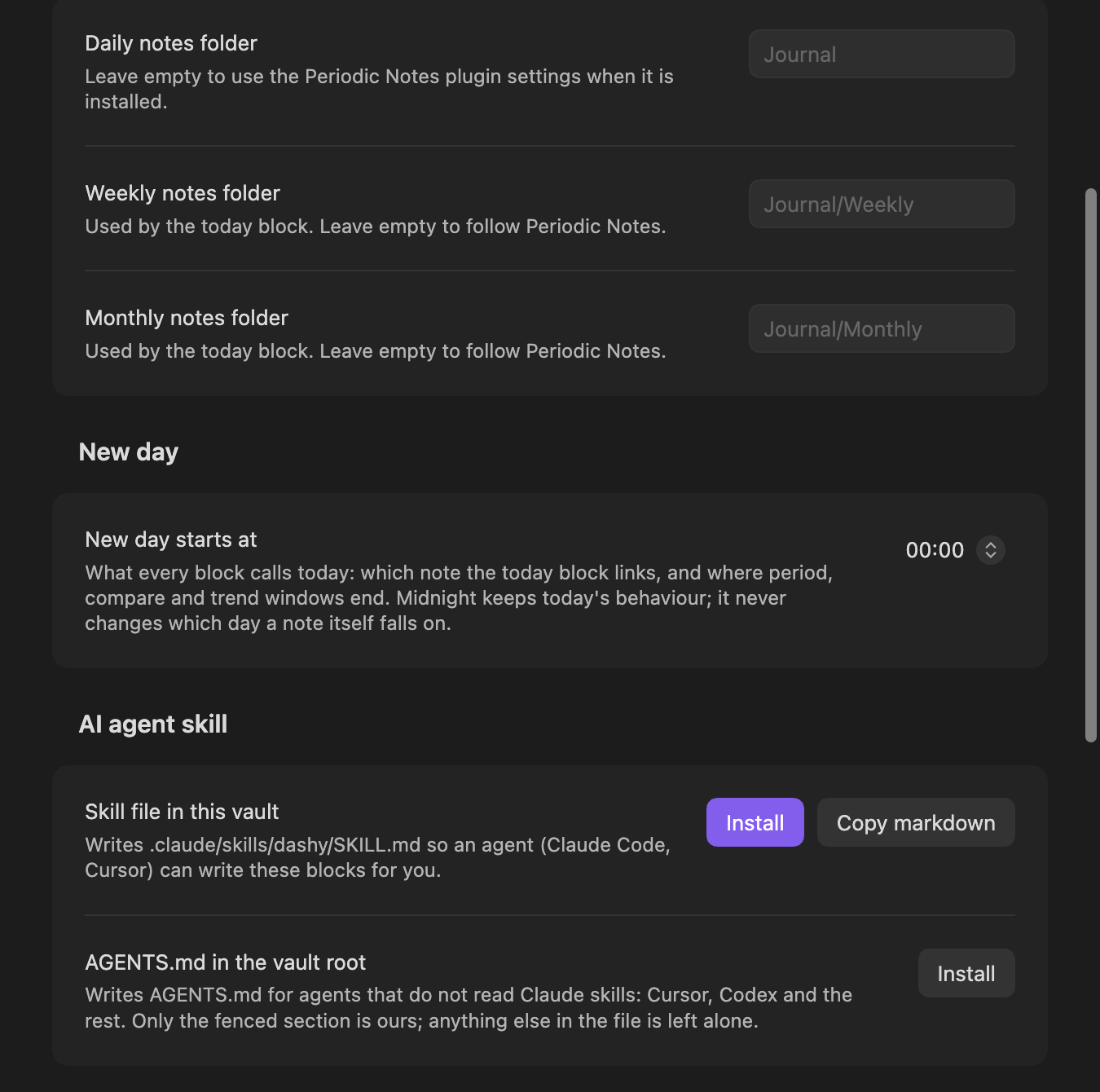
Install Dashy from Obsidian's community plugins: search for Dashy, then Install and Enable. Then open Settings → Dashy and scroll to AI agent skill. Each button writes a file only when you press it.
- Skill file in this vaultInstall writes
.claude/skills/dashy/SKILL.mdand.claude/skills/dashy/reference.md. Claude Code finds the skill there on its own:SKILL.mdtells it how to work,reference.mdlists every key of every block. - AGENTS.md in the vault rootInstall writes the same text into
AGENTS.md, the file Codex, Cursor and other agents read. Only the fenced Dashy section is Dashy's; the rest of the file stays as it was. - Copy markdownCopies the same text to the clipboard, for a chat app that cannot open your files. Paste it at the start of the chat, then paste the frontmatter of a few notes so it knows your property names.
Once a file is written, its button reads Update. Press it after updating Dashy, so the agent learns the new keys.
2Open the vault in your agent
The agent needs the vault folder as its working folder, the way it would open a code project.
- In a terminal or an editorOpen the vault folder in Claude Code, Codex or Cursor. Keep Obsidian open next to it: each block redraws as soon as the agent saves the note.
- Inside ObsidianThe community plugin Claudian runs Claude Code and other agents in an Obsidian pane, with the vault as the working folder, and loads the skills in the vault.
3Ask for what you want to see
Write the request the way you would say it. No key names: finding the right ones is the agent's job. Say which note the blocks go into, or let the agent ask. Six requests, from one card to a whole page:
Books this year against a goal
Count the books I finished this year against a goal of 24.What you get: a progress bar. The agent first finds how a book note says when you finished it, here a finished date property in the notes under Books.
```progress
source: Books
date_field: finished
period: year
items:
  - { label: Books this year, agg: count, goal: 24 }
```
Average sleep and a chart by week
Show my average sleep over the last 30 days and a chart of it by week.What you get: a stats card for the last 30 days and a chart with a bar per week. With the Obsidian Charts plugin turned on, the second block is written as dashy-chart, because chart then belongs to Charts.
```stats
source: Diary
items:
  - { label: Sleep, field: sleep_hours, agg: avg, period: 30d, precision: 1, unit: h }
```

```chart
source: Diary
field: sleep_hours
agg: avg
bucket: week
type: bar
```
A training year in two colours
A heatmap of my training year: running and cycling in different colours.What you get: a heatmap with one layer per sport, each in its own colour. More on layers in two activities on one heatmap.
```heatmap
source: Diary
layers:
  - { field: run_km, color: green, label: Running }
  - { field: bike_km, color: blue, label: Cycling }
title: Training
```
A home page
Make this note my home page: today's date with links to my daily and weekly notes, tiles for my main folders, and a couple of counters.What you get: today for the date and the links, tiles with a note count on each folder, and a stats line of counts. today takes the folder and the name format from your Daily notes or Periodic Notes settings, so its links open the notes you already have.
```today
daily: true
weekly: true
```

```tiles
items:
  - { label: Inbox, path: Inbox, badge: count }
  - { label: Projects, path: Projects, badge: count }
  - { label: Diary, path: Diary, badge: count }
```

```stats
layout: inline
items:
  - { label: notes, agg: count }
  - { label: diary days this month, source: Diary, agg: count, period: month }
```
A habit calendar for this month
A habit calendar for this month: workout, meditation, reading.What you get: a heatmap drawn as this month's calendar, a dot in each habit's colour under every day you kept it. More in a monthly habit calendar.
```heatmap
source: Diary
range: month
layout: calendar
layers:
  - { field: workout, color: orange, label: Workout }
  - { field: meditation, color: purple, label: Meditation }
  - { field: reading, color: green, label: Reading }
```
A weekly review that counts its own week
In my weekly review note, count this week's runs against last week, and show whether I slept as much as usual.What you get: stats with period: note written once at the top, so both cards count the week the note is named for, like 2026-W40, however late you open it. Runs are compared with the week before; sleep with your usual level, the average of every earlier note. More in a weekly review without Dataview.
```stats
source: Diary
period: note
items:
  - { label: Runs, field: run, agg: sum, compare: true, better: up }
  - { label: Sleep, field: sleep_hours, agg: avg, precision: 1, compare: usual, better: up }
```Dashy compares a card with your usual level only when the card is an average. A count of runs against a usual week is not something it draws, so a good agent says that and offers last week instead, as above.
When the data is not there
Dashy counts properties your notes already hold. If they are not there, a good agent says so instead of writing a block that shows dashes. In our tests, asked for a habit calendar in a vault whose daily notes had no habit properties, it said the fields were missing and proposed the lines to add to the daily note template.
- No DataviewJS. The skill tells the agent not to improvise DataviewJS for what Dashy does. Everything on this page is Dashy blocks.
- What Dashy does not do, it says. Ask for a pie chart, a table or a kanban board and the agent should say Dashy does not draw it and name what does: Obsidian Charts for the pie, Bases for the table.
If a block shows an error
The agent cannot see the note as Obsidian draws it. Open the note in Reading view. A block that cannot draw what was asked says why, in place: an unknown key with the one it probably meant, a field no note has, a line of YAML that does not parse. Copy that text and paste it to the agent; it fixes the block from the message instead of guessing. More on these messages on the home page.
What the agent reads
The agent reads the notes and settings files it opens and sends them to its model provider, as it does with any file it works on. Check what your agent is allowed to open before you point it at a vault with private notes. Dashy itself sends nothing anywhere: it makes no network requests of its own, and it writes the skill files only when you press their buttons. The one thing a block loads from the internet is a tile image you set to an https:// address, the way Obsidian loads an image in a note.
Related guides

A clock, today's notes, a line of counts, folder tiles and the dates coming up.

Counts, streaks and a year of days from daily note checkboxes.

A weekly note that counts the week it is named for.
Dashy is in Obsidian's community plugins. Search for Dashy, install, enable, then press Install under AI agent skill in its settings, or run Dashy: Install agent skill from the command palette.